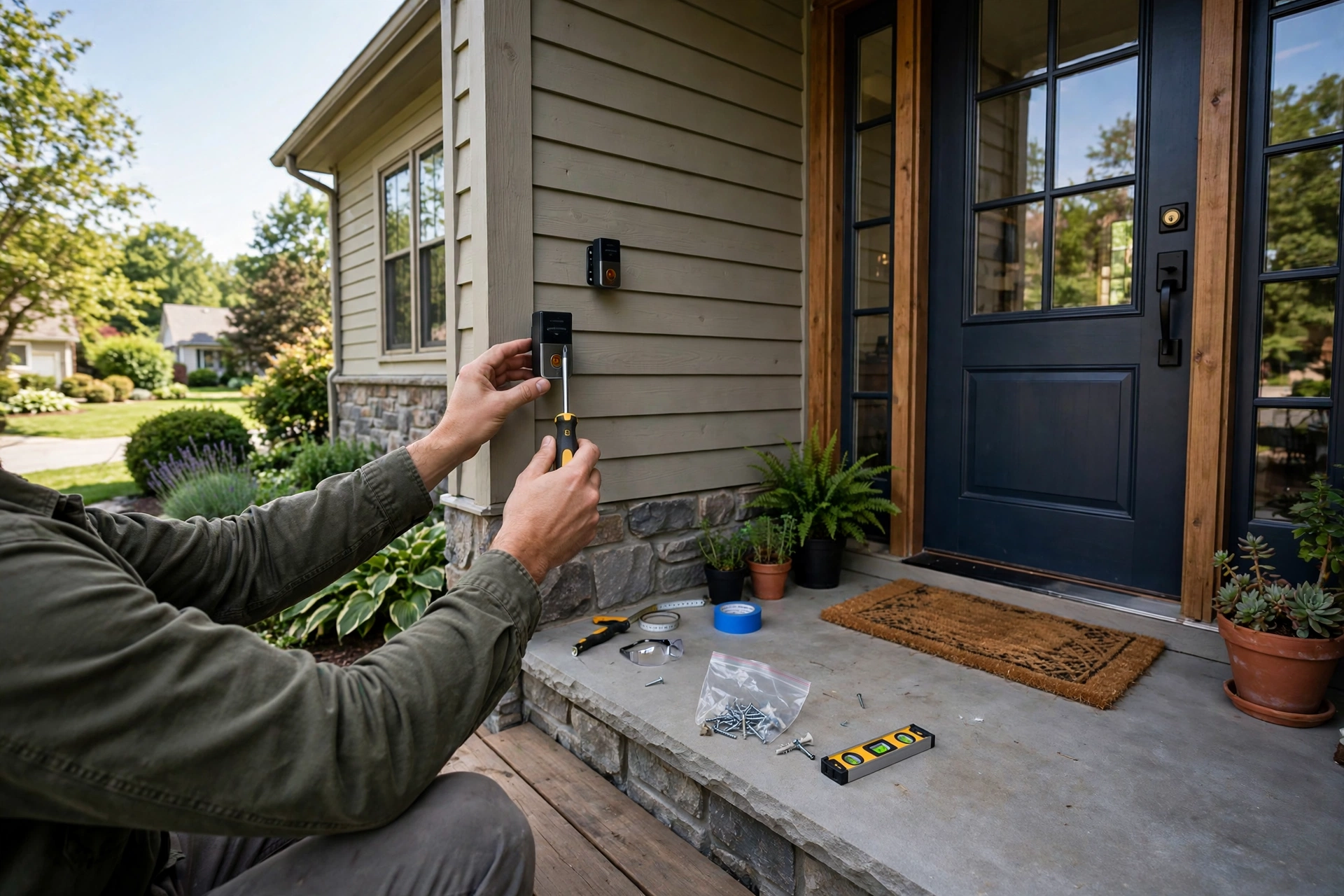
Installing a video doorbell is one of the most approachable smart home projects there is. A battery model takes about 15 minutes and a screwdriver. A wired swap takes 30 to 60 minutes if your transformer and chime are already compatible. This guide walks through both, plus the transformer check and chime compatibility steps that prevent the two most common installation headaches.
Last updated: October 22, 2026.
Before you start: the checklist
- Your new doorbell, fully charged if it is a battery model
- The mounting bracket and screws (or no-drill mount) from the box
- A Phillips screwdriver and, for wired installs, a voltage tester or multimeter
- Your Wi-Fi network name and password, plus your phone with the brand’s app installed
- For wired installs: the location of your breaker box and 30 uninterrupted minutes
Step 1: Check your transformer (wired installs)
Skip this step and you risk the most common wired-install failure: a doorbell that reboots, buzzes the chime, or never powers on. Find your transformer, usually a small metal box mounted on or near the electrical panel, sometimes in a closet or garage. Read its label: most smart doorbells want 16 volts and at least 10VA. Ring recommends 16V 30VA for the Video Doorbell Pro 2; Nest’s wired doorbell accepts 8 to 24VAC at 10VA (per AT&T’s spec listing). If yours reads 10V, replace it with a $20 16V 30VA transformer from a hardware store. With the breaker off, it is a three-wire swap that takes ten minutes. This single check prevents more support calls than any other step.
Step 2: Install a wired video doorbell
- Turn off the breaker for the doorbell circuit. Press your existing doorbell to confirm it is dead.
- Remove the old doorbell by unscrewing it from the wall. Note which wire connects to which terminal (take a photo); the wires are low-voltage but handle them gently.
- Install the mounting bracket for the new doorbell, feeding the existing wires through the center hole. If the new bracket is smaller than the old doorbell’s footprint, use the included cover plate or a trim plate to hide old screw holes and paint lines.
- Connect the wires to the new doorbell’s terminals. Polarity does not matter for doorbell circuits. If your model includes a chime power kit (Ring’s Pro Power Kit, for example), install it at the chime now, following the in-box diagram for your chime type.
- Mount the doorbell onto the bracket and restore power at the breaker.
- Set up in the app: create the device, connect it to your 2.4 GHz Wi-Fi network (most doorbells prefer 2.4 GHz for range through walls), configure motion zones, and test the chime.
Step 3: Install a battery video doorbell
- Charge the battery fully before mounting. A first charge takes several hours; starting at 100 percent avoids a ladder trip next week.
- Pick the mounting spot at about 48 inches (1.2 m) from the ground, centered on the door or on the door frame. Hold your phone there and run a speed test: you want at least 2 Mbps upload for smooth video.
- Attach the bracket with the included screws, or use a no-drill mount for rentals. On brick or masonry, use a masonry bit and the included wall anchors.
- Click the doorbell onto the bracket and confirm it locks (most have a security screw underneath).
- Set up in the app: connect to Wi-Fi, set motion zones tight enough to exclude the street, and test two-way talk and night vision after dark.
Chime compatibility
Your indoor chime needs to play nicely with the new doorbell. Mechanical chimes (the classic ding-dong with visible plungers) work with nearly everything, sometimes requiring the power kit included in the box. Digital chimes (electronic melodies) are pickier: check the doorbell brand’s compatibility list before buying, because some combinations buzz, play partial melodies, or need a specific adapter. No chime at all? Every major brand offers an alternative: plug-in chimes (Ring Chime, ~$35), the Eufy HomeBase doubling as a chime, or simply using a smart speaker (Echo, Nest speaker) for announcements. Many battery-doorbell owners skip a physical chime entirely and rely on phone notifications plus a smart speaker.
Troubleshooting: the usual suspects
| Symptom | Likely cause | Fix |
|---|---|---|
| Doorbell never powers on (wired) | Underrated or dead transformer | Check the transformer label; replace with 16V 30VA if needed |
| Doorbell reboots when the button is pressed | Voltage drop under load | Transformer upgrade; check for loose wire connections |
| Chime buzzes or hums constantly | Power kit missing or wrong chime type setting | Install the included power kit; set chime type correctly in the app |
| “Device offline” several times a day | Weak Wi-Fi at the door | Move a mesh node or extender closer; switch the doorbell to 2.4 GHz |
| Motion alerts for every passing car | Motion zone too wide | Tighten zones to the walkway; lower sensitivity; enable person-only alerts |
| Battery drains in weeks, not months | High-traffic location or cold weather | Reduce motion sensitivity and recording length; add a solar charger |
| Video is pixelated or freezes | Upload bandwidth too low | Need ~2 Mbps upload at the door; upgrade placement of router or add extender |
Safety notes
Doorbell circuits are low-voltage, but the transformer connects to mains power. Always kill the breaker before touching the transformer, and use a voltage tester to confirm wires are dead before handling them. If your wiring looks damaged, aluminum, or buried in a wall with no junction box, call an electrician. A straightforward wired swap costs $100 to $250 professionally installed, which is cheap insurance against a wiring mistake.
What the wires actually mean
A standard doorbell circuit is simpler than it looks. The transformer (usually near your breaker panel) sends low-voltage power to the chime, and the doorbell button sits in the loop between them. Inside the chime box you will typically see three terminals labeled FRONT, TRANS, and REAR. FRONT goes to the front door button, TRANS goes to the transformer, and REAR is for a second door (often unused).
When you install a video doorbell, its two wires connect where the old button’s wires were: one to FRONT, one to TRANS at the chime, or simply to the two wires at the door location (polarity does not matter). The chime power kit included with models like the Ring Pro 2 wires across the chime terminals to regulate power so the chime does not buzz.
If you find more than two wires at the door, do not panic: one pair may run to a rear door button. Cap unused wires individually with wire nuts and tuck them back into the wall. Label everything with masking tape before you disconnect anything; a note saying which wire went to FRONT beats memory every time. And if the wiring looks spliced, corroded, or wrapped in cloth insulation from decades ago, stop and call an electrician rather than improvising.
A multimeter is the $15 tool that removes all guesswork: set it to AC voltage, touch the probes to the two door wires with the breaker on, and confirm 16 to 24 volts. No reading means the transformer is dead or the breaker is off; a reading under 12 volts means the transformer is underrated for a smart doorbell. Test before you mount, not after.